
Written by
Support Team
Merging Google Calendars: Best Practices for 2026
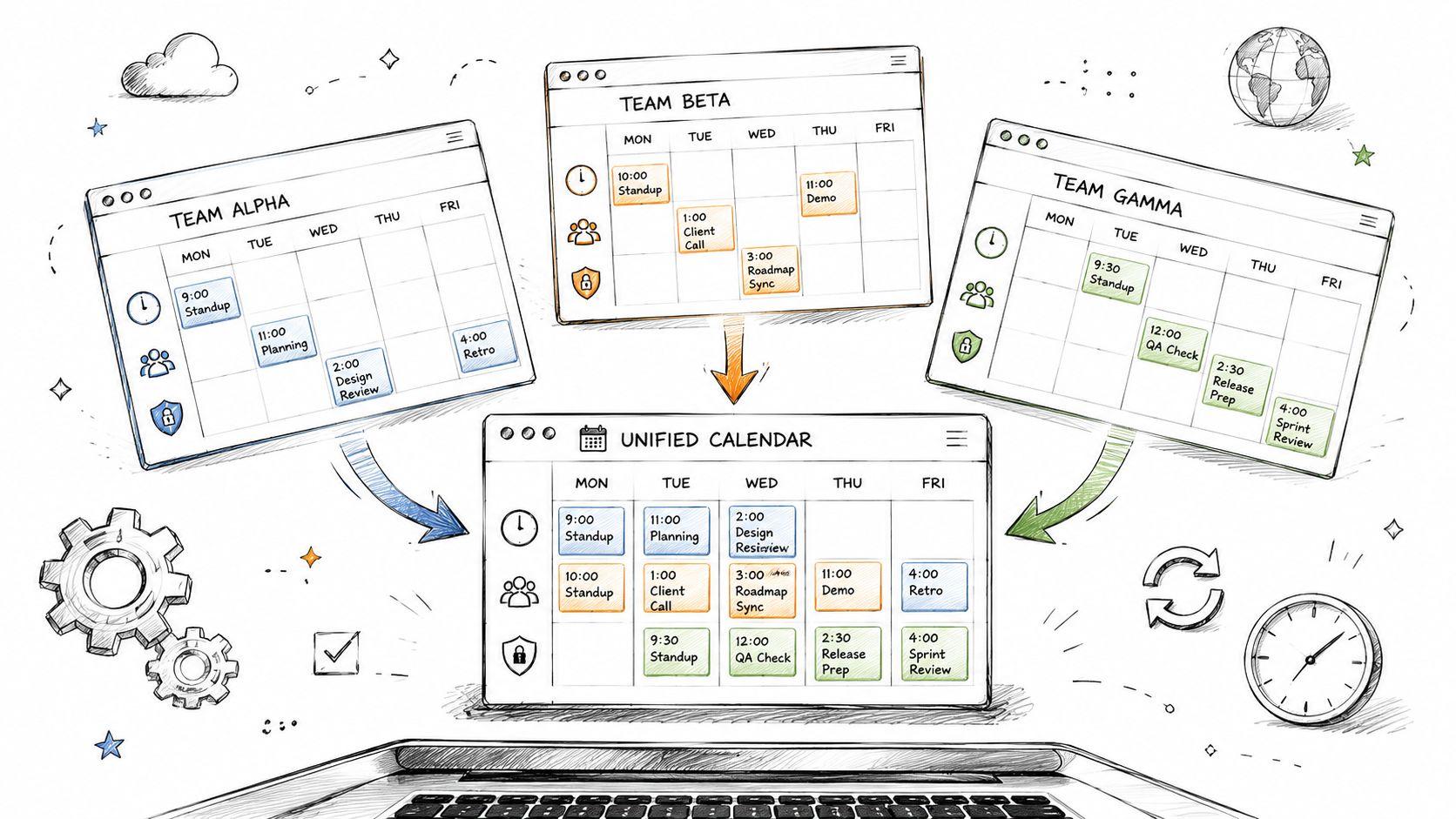
Most advice about merging Google Calendars treats it like a harmless cleanup task. Add a shared calendar, export an .ics file, connect a sync tool, and enjoy one tidy view.
That advice works for individuals. It often fails for support teams.
A support operation doesn't just need visibility. It needs controlled access, fair workload distribution, accurate fallback coverage, and protection against customers or partners finding ways around the queue. The same setup that helps one manager see everyone's schedule can expose agent availability, preserve stale assignments, or create duplicate events that no one notices until a customer misses a call.
The Hidden Costs of a Single Calendar View
A single calendar view sounds efficient. For personal planning, it often is. For a support team, it can turn clean scheduling into a false sense of control.
The problem starts with the assumption behind most guides. They assume the goal is simple visibility. In support, the actual goal is safe coordination. Those are not the same thing.
When teams start merging Google Calendars, they usually want one of three outcomes: to see who's working, to move old events into a new account, or to run live scheduling across multiple people. Each goal needs a different method. When teams use one method for all three, the calendar becomes a patchwork of copied events, broad permissions, and hidden ownership issues.
Convenience can create operational debt
A merged view can look complete while still being wrong. Shared calendars may show availability without transferring ownership. Imported calendars create a static copy that gets old the moment shifts change. Sync tools add automation, but they also add another place where permissions and routing logic can break.
For support managers, that matters most during exceptions. Sick leave, escalations, swapped shifts, and emergency handoffs are where calendar systems either help or get in the way.
Merging is easy when schedules are stable. Support schedules usually aren't.
There's also a planning issue that many teams confuse with a calendar issue. If the team is still using ad hoc spreadsheets, side chats, and copied events to manage rotations, the calendar becomes the place where every upstream mistake shows up. Teams that are still streamlining shift and PTO management often get more value from fixing schedule inputs first than from trying another merge trick.
A better question than How do we merge
The useful question isn't “How do we merge Google Calendars?” It's “What problem is this merge supposed to solve?”
That reframes the decision:
- If the need is passive visibility, subscribing to a shared calendar is usually enough.
- If the need is one-time migration, export and import is the right tool.
- If the need is live coordination, teams need to think beyond convenience and ask what the workflow exposes, who can edit what, and what happens when the assigned person changes.
That last point is where most mainstream advice falls apart.
Subscribing to Shared Calendars for Basic Visibility
The lightest way to handle merging Google Calendars is not a merge. It's layering calendars in one interface through sharing.

This method became the preferred choice for 78% of small businesses in Google Workspace by 2013, and teams reported improved availability visibility, but it doesn't transfer event ownership according to Koalendar's guide to merging Google Calendars.
How the shared method works
The source calendar owner opens Google Calendar settings, selects the calendar to share, and adds another email address under Share with specific people. From there, Google offers permission levels such as viewing availability only, viewing details, or making changes.
The receiving user accepts the share and the calendar appears alongside existing calendars in the left panel. Nothing has been copied. Nothing has been permanently merged. Google displays multiple calendars in the same view.
That's why this method is fast and low-risk for basic oversight. A team lead can see whether an agent is blocked, in a meeting, or generally available without moving events between accounts.
The permission choice matters
Trouble is frequently encountered at the permission layer, not the setup layer.
A practical way to consider this:
| Permission level | What it's good for | What breaks |
|---|---|---|
| See only free/busy | Basic awareness of availability | No event context, weak for coordination |
| See all event details | Better scheduling context | More exposure than many support teams need |
| Make changes to events | Active calendar management | Broad control, high trust required |
| Make changes and manage sharing | Admin-style control | Easy to over-grant |
For support leads, free/busy is often enough for coverage checks. It's much safer than exposing full meeting metadata, customer names, internal notes, or escalation details.
Practical rule: Give the lowest permission that still lets the role do its job.
Where shared calendars help and where they fail
This method works well in a narrow set of use cases:
- Shift oversight: A lead wants to see whether agents are in meetings before assigning internal work.
- Cross-functional awareness: Support can check when engineering or customer success is tied up.
- Personal planning: One person wants work and personal calendars in one screen without copying events.
It fails when the team expects real ownership transfer or durable merged records.
A manager may think a shared team calendar gives centralized control. It doesn't. The original calendar still owns the events. If the source account changes permissions, gets removed, or stops maintaining that calendar, the “merged” setup loses value fast.
That's why shared calendars are best treated as a visibility layer, not a system of record.
Using Export and Import for a Permanent Calendar Merge
When teams need a true one-time merge, export and import is the native Google method that moves calendar data into a destination calendar.

Google launched its official export-and-import feature in 2009, and over 400 million users relied on this native method as of 2024, making it the most widely used approach even though it creates a static snapshot rather than real-time sync, as noted in Zeeg's overview of Google Calendar merging.
What the .ics process actually does
Google exports calendar data in iCalendar format (.ics). During export, Google creates a .zip file with one .ics file per calendar. The user extracts the right file, goes to Import & Export in Google Calendar settings, uploads the file, and chooses the target calendar from the Add to calendar dropdown.
That final dropdown matters more than most tutorials admit. If the wrong destination calendar is selected, events land in the wrong place and cleanup gets messy quickly.
For teams that want a walkthrough before doing the migration, TimeTackle has a useful guide on how to combine your Google Calendars.
Best use cases for export and import
Export and import is strong when the source data is stable. It's a migration tool, not a collaboration tool.
Use it for cases like these:
-
Closing an old account
A departing employee or an old department account needs its historical appointments moved into a new primary calendar. -
Consolidating personal and work archives
Someone wants one long-term record in a single Google account. -
Platform migration cleanup
Events from another system have already been exported into .ics format and need to be loaded into Google Calendar.
If the schedule will keep changing after import, this method is the wrong tool.
What teams often miss
The imported events are copies. They don't stay linked to the source. If someone updates the original meeting later, the imported version doesn't change.
That snapshot behavior makes this approach reliable for archiving and risky for anything live. A support team using export and import to unify active calendars will eventually work from stale events.
A few practical checks prevent most import disasters:
- Confirm the target calendar first: Check the destination calendar name before uploading the .ics file.
- Extract only the needed file: Google exports one .ics file per calendar. Importing the wrong one causes confusion fast.
- Verify recurring events manually: Recurrence patterns don't always behave the way teams expect after migration.
- Review after import: Open the destination calendar in week and month views to spot obvious errors.
That discipline is boring, but it's what separates a clean migration from a repair project.
Automating Merges with Sync Tools and Account Delegation
When manual methods stop keeping up, teams usually look at two options. They either connect a sync tool that mirrors events between calendars, or they grant another person delegated access so someone else can manage the calendar directly.

Neither option is automatically better. They solve different problems and create different risks.
Sync tools reduce manual work
Third-party sync tools exist because export and import doesn't handle live changes. Some tools can monitor two calendars and copy or mirror events based on rules. That's useful when one user has to keep a work calendar and another booking calendar aligned.
The upside is obvious. Fewer manual imports. Fewer stale copies. Less repetitive admin.
The downside is that every sync rule becomes operational logic. If the rule is wrong, the system copies the wrong events, preserves the wrong availability, or duplicates blocks that should stay private. Teams also need to trust another vendor with calendar access.
For teams comparing sync patterns across platforms, LeaveWizard's article on quick steps for calendar sync is a helpful reference point because it shows how easily “simple sync” becomes a broader scheduling architecture question.
Delegation gives control, not a merge
Google Calendar delegation is different. It lets one user manage another user's calendar on their behalf. This is useful for executive assistants, coordinators, or support admins who need to create, edit, and cancel appointments directly inside a calendar they don't own.
That can be cleaner than copying events around. It avoids some of the mess of duplicate records because there's still one source calendar being managed.
But delegation comes with a trust problem. It grants broad authority. If the delegate makes a mistake, that mistake happens in the live calendar, not in a mirrored copy.
A quick comparison helps:
| Method | Best for | Main risk |
|---|---|---|
| Sync tool | Keeping calendars aligned automatically | Rule errors, vendor access, copied mistakes |
| Delegation | Letting another person manage a live calendar | Broad permissions and human error |
When neither approach fits support scheduling
Support teams often outgrow both options because neither one understands capability-based routing, fallback assignment, or shift-aware handoffs. They move data around calendars, but they don't solve team scheduling design.
That's why teams reviewing automation should also look at scheduling software built for operations rather than personal booking. Headset Army has a useful roundup of the best scheduling programs for comparing what generic calendar automation handles well versus where purpose-built tools start to matter.
Automation helps only when the underlying assignment logic is correct.
Troubleshooting Common Calendar Merging Pitfalls
Most calendar merges don't fail in dramatic ways. They fail in subtle ways. A duplicate event slips in. A recurring series goes missing. A time zone shifts a call by an hour. Someone thinks they have edit rights and doesn't.

One problem deserves special attention. Google doesn't automatically deduplicate based on event UID during a standard .ics import, and approximately 30% of manual merges result in duplicate entries that need cleanup according to Zapier's discussion of Google Calendar merge issues.
Duplicate events after import
Duplicates usually happen when teams import more than once, import overlapping calendars, or try to “refresh” a static import by uploading the same file again.
The fix is manual review. There isn't a reliable native cleanup pass that will safely remove only the duplicated copies.
Use a tight checklist:
- Sort by date range: Review the period that was imported rather than scanning the entire calendar.
- Look for identical titles and times: Duplicates usually reveal themselves in week view first.
- Check recurring series carefully: One duplicate rule can create many repeated conflicts.
- Pause before re-importing: If the first import looked incomplete, confirm what's missing before uploading again.
Missing events and broken recurrence
Missing events often come from importing the wrong .ics file, partial exports, or recurrence patterns that don't land as expected in the destination calendar.
Recurring events are especially tricky because one series can include exceptions, edited single instances, or cancellations that don't behave cleanly after transfer. That's one reason static imports work better for historical records than for active schedules.
A calendar can look complete in month view and still be wrong at the event-instance level.
A practical validation method is to compare a handful of known events across different categories: one single event, one all-day item, one recurring series, and one event with guests or notes.
Time zone and permission issues
Time zone problems are easy to miss until someone joins late. If the source and destination settings differ, imported meetings can appear shifted. Shared calendars can also confuse teams when users assume they're seeing local time while the event was created under a different calendar setting.
Support teams that coordinate across regions should sanity-check their conversion workflow before they trust a merged calendar. For a quick reference on handling close-zone confusion, Headset Army's guide to CDT to EDT time conversion is useful because many scheduling misses start with basic regional assumptions.
Permission issues are a different class of problem. A shared calendar may be visible but not editable. A delegate may expect broader access than they've been granted. Or the opposite happens and someone receives more control than the workflow really needs.
A simple diagnostic sequence works well:
- Confirm who owns the source calendar
- Check the exact permission level granted
- Verify whether the issue is view, edit, or sharing control
- Test with one event, not the whole calendar
- Document the intended behavior before changing access again
That last step matters. Teams often keep changing permissions until the problem “goes away,” then no one remembers why a user has broad access later.
Why Merging Calendars Fails for Modern Support Teams
The biggest flaw in mainstream advice is that it assumes support scheduling is a visibility problem. It isn't. It's a routing problem.

For high-security support, merging calendars isn't just inefficient. It can be dangerous. Data from 2025-2026 shows 68% of enterprise support leaders report "calendar hijacking" as a top risk, while many how-to guides still push full event visibility and broad sync setups that increase direct-dial link leakage, according to Headset Army Internal Data.
The security paradox
The more visible the calendars become, the easier it is for someone to work around the intended queue.
An exposed agent calendar, a persistent booking link, or a shared event containing direct meeting details can let customers anchor on one specific person. That creates hero culture, uneven workload, and repeat bypass of the support path the team is trying to manage.
This is the security paradox of merging Google Calendars for support. The same setup that makes staffing easier for managers can make access easier for everyone else.
A support leader comparing generic booking setups should review how those tools expose identity and availability, not just how they sync with Google Calendar. Headset Army's article on appointment scheduler options for Google Calendar is useful in that context because it frames scheduling around support workflows rather than sales-style convenience.
The dynamic assignment gap
Merged calendars also break when assignment needs to stay fluid.
Many support teams use rotating shifts, skill-based escalation, backup coverage, and late-stage reassignment. A static merged calendar doesn't understand that. It only reflects copied or shared events. If Agent A was the original placeholder but Agent B should now take the call, the merged view can preserve the wrong truth.
That breaks fallback logic in subtle ways:
- Sick leave changes coverage: The calendar still points to the original person.
- Workload balancing shifts assignments: The merged event doesn't know who should absorb the load.
- Specialist routing changes midstream: A copied calendar block can prevent a better reassignment.
Support scheduling works best when the system assigns a capability first and a person later.
What actually works for support teams
For modern support operations, the safest model is usually not “merge everything.” It's “show only what each role needs, and defer assignment until the workflow is ready.”
That means:
| Need | Better approach |
|---|---|
| Team awareness | Limited visibility, often free/busy only |
| Historical migration | One-time export and import |
| Secure customer booking | Controlled routing, not agent-level public availability |
| Shift-based coverage | Assignment logic tied to staffing rules, not copied events |
A lot of teams keep trying to force Google Calendar into a job it wasn't designed to do. Google Calendar is good at storing and displaying events. It isn't built to protect queue integrity for a support organization with rotating coverage and strict channel control.
That's why the strongest support operations treat merging as a narrow tactic, not the core system.
Support teams that need secure scheduling, dynamic fallback, and protection against queue bypass should look beyond generic calendar merges. Headset Army is built for support organizations that need controlled routing from ticket to call without exposing agent calendars, direct meeting links, or brittle static assignments.